
Using TradingView Charts for Smarter Market Analysis
📊 Learn how to master TradingView charts with easy tips on types, tools, and indicators for smarter market analysis in Nigeria. Customize and save your work! 🚀
Edited By
Isabella Hughes
Navigating financial markets can be tricky without the right tools. That’s where TradingView.com charts come into play. They offer traders, investors, and analysts an accessible yet powerful way to visualize market data, spot trends, and make informed decisions.
Whether you’re a student just getting your feet wet or a seasoned broker looking for more detailed analysis, understanding how to use these charts is essential. TradingView isn’t just about pretty graphs — it packs a punch with customization options, technical indicators, and user-friendly layouts.
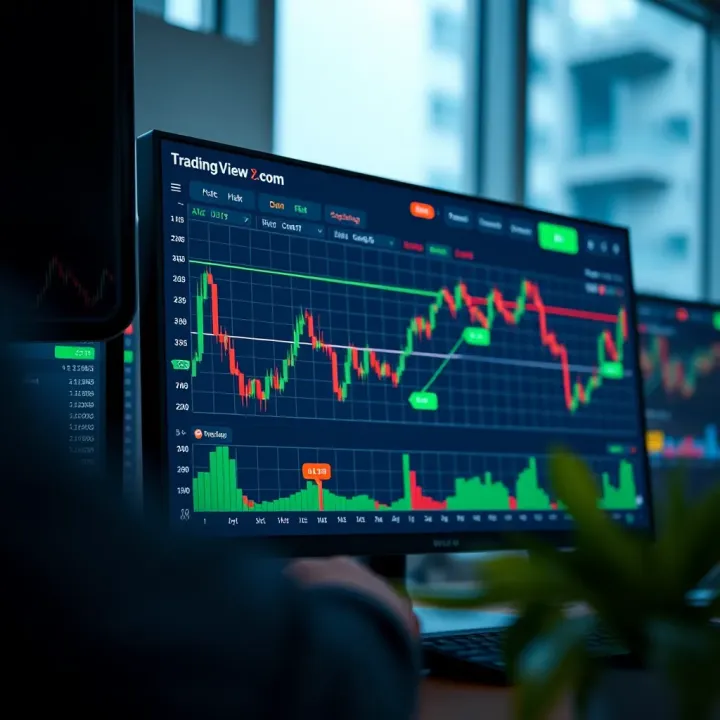
In this guide, we’ll break down the key features of TradingView charts step-by-step. From getting started with the basics to exploring advanced tools like drawing trend lines or integrating volume indicators, you'll find clear, actionable instructions. We’ll also share practical tips that help you get the most from your market analysis, directly affecting your trading strategies.
"Charts don’t predict the future, but knowing how to read them cuts through the noise and reveals the story markets are telling."
By the end, this guide aims to equip you with everything you need to confidently use TradingView charts whether you’re tracking stocks, forex, cryptocurrencies, or commodities. No fluff—just straightforward insights tailored for you.
TradingView charts have become a go-to tool for many traders and investors who want to keep a close eye on financial markets. These charts offer a visual way to track price movements, spot trends, and make smarter decisions without needing fancy software or expensive subscriptions. Whether you’re a newbie trying to understand market basics or a seasoned analyst looking for detailed insights, TradingView’s interface offers just the right balance.
At its core, TradingView provides users with intuitive, powerful charting tools that adjust smoothly to your needs. Imagine you want to follow the Nigerian Stock Exchange or the USD/NGN forex pair—TradingView handles all that with ease. It’s not just about looking at lines and candlesticks; it's about interpreting the story behind these numbers in a way that’s practical and actionable.
Understanding what TradingView charts offer helps you avoid common pitfalls like misreading signals or chasing false trends. This introduction sets the stage by exploring what this platform brings to the table, including various charting options, market coverage, and why it stands out compared to other chart providers. By grasping these basics, you’ll be better equipped to navigate the more detailed sections ahead.
TradingView provides an impressive variety of charting services that cater to different trading styles and experience levels. From simple line charts that display closing prices over time to complex candlestick charts revealing open, high, low, and close data, you get to choose what fits your strategy. A nifty feature is how quickly you can switch between chart types or customize them, saving you precious time during busy market hours.
Besides visual layouts, TradingView includes a range of technical indicators like moving averages, Bollinger Bands, and oscillators such as RSI and MACD built directly into the platform. These indicators are crucial for spotting momentum changes or overbought and oversold conditions. For example, a trader tracking the Nigerian stock Zenith Bank can apply a 50-day moving average to spot potential support or resistance zones on the chart.
One of TradingView's strengths is its wide market coverage. You’ll find charts for stocks, commodities, cryptocurrencies, forex pairs, and even bonds, all in one place. This breadth means you don’t need to switch platforms to keep an eye on different assets, which makes juggling investment portfolios much easier.
For instance, if you’re interested in the oil price alongside Nigerian stocks or Bitcoin, you can access those charts seamlessly. The platform also covers a variety of global exchanges such as the NYSE, NASDAQ, LSE, and local exchanges like the Nigerian Stock Exchange. This means TradingView fits both local traders wanting access to domestic markets and those looking to diversify internationally.
TradingView shines because it’s easy to get started without a steep learning curve. You don’t need to install heavy software; everything works right in your web browser or the mobile app. This is a godsend for traders on the move or those who can't dedicate a full setup just for charts.
The interface is clean and logically organized with features like drag-and-drop drawing tools, quick indicator application, and customizable timeframes. Even a beginner can plot a trendline or set up alerts within minutes. Plus, TradingView’s free account option allows considerable functionality without hidden costs, making it accessible to students, hobbyists, and professional traders alike.
Beyond just charts, TradingView offers a social layer that sets it apart. Users can publish chart ideas or trade setups, comment on others’ analyses, and participate in discussions. This interaction can expose you to different perspectives or strategies that you might not stumble upon otherwise.
Imagine following an experienced trader who posts technical setups on Naira Forex pairs or commodities influencing Nigerian agriculture. By reviewing their charts and explanations, you can learn new techniques or validate your analysis before making a move. The platform also supports public chats and private groups, allowing for tailored discussions among traders with similar interests or goals.
Being part of a trading community on TradingView isn’t just about copying ideas; it’s about understanding market rationale from diverse voices, which can deepen your own insight and confidence.
By starting with this introduction, you lay a foundation to use TradingView charts effectively, combining strong tools and community wisdom. The next sections will build on this, guiding you through setting up accounts, mastering the interface, and applying indicators efficiently for your trading edge.
Starting off with TradingView charts is like setting your compass right before a trip—you want to make sure you’re familiar with the basics before diving deep. This section is key because no matter how powerful a tool is, if you don’t know how to access and navigate it properly, you’ll miss out on its full potential. Think of it as learning to drive a car; knowing where each button and feature is ensures you can hit the road smoothly without fumbling.
Opening an account on TradingView is straightforward and won’t take much of your time. You start by going to their sign-up page where you can register using your email or even connect through Google or Facebook. This flexibility makes the barrier to entry pretty low, which is great if you want to get right into analyzing charts without much fuss. Once you fill in your details and verify the email, you're set to explore.
This sign-up step is crucial because it unlocks personalized features like saving your chart layouts, setting alerts, and interacting with the active TradingView community. For example, without logging in, you wouldn’t be able to save your favorite indicators or watchlists, which can be a real pain if you're frequently checking different stocks like Nigerian equities or forex pairs.
With a free account, you get a pretty solid setup to begin your technical analysis journey. You'll have access to multiple chart types — candlesticks, bars, lines — and basic technical indicators like Moving Averages, RSI, and Bollinger Bands. In trading, this is like having the essential tools ready in your toolbox; not everything, but enough to build something meaningful.
Besides, you can save up to three chart layouts and set a couple of alerts — think of price reminders popping up when your target is hit, so you don’t have to stare at the screen all day. While it doesn’t give you everything like the paid plans, the free version lets you experience most core features without paying, which is perfect if you're just starting or want to test the waters before going deeper.
Once inside the interface, you’ll notice a clean design that puts the actual chart front and center. The screen is divided into logical sections: the main chart takes up the middle space, while the top houses the toolbar with timeframes, indicators, and other settings. On the left, you’ll find drawing tools, and the right sidebar displays alerts and watchlists.
For example, if you choose a candlestick chart for Nigerian stocks like Dangote Cement, the layout lets you easily switch between intraday or weekly views. This setup ensures you don’t have to hop around different menus constantly.
The layout keeps your focus on the chart but keeps everything you need close by, which helps avoid getting overwhelmed. It’s designed to be beginner-friendly but also powerful enough for experienced traders.
Here are some must-know buttons:
Timeframe selector: Lets you toggle between different time views, like 5 minutes for scalping or monthly for long-term trends.
Drawing toolbar: Includes tools like trendlines, Fibonacci retracements, and shapes for marking patterns.
Indicators button: Opens the library of technical indicators you can add and customize.
Save button: Enables saving your current chart layout to revisit later.
Alerts manager: Helps you set, edit, or delete price and indicator alerts.
For instance, when watching forex pairs like USD/NGN, you can draw trendlines quickly and add RSI to spot overbought or oversold levels. The ability to save this setup means you don't have to recreate your workspace every time you log in.
Getting familiar with these tools early makes a huge difference. Instead of fumbling around wondering where a feature is, you'll be able to react quickly to market moves and make better-informed trading decisions.
Overall, understanding how to create an account and navigate TradingView’s interface lays the groundwork. With these basics nailed down, you’re well placed to start analyzing markets more effectively, whether you’re day trading Nigerian shares or tracking global commodities.
Understanding different chart types and the available timeframes is a solid building block for anyone serious about using TradingView effectively. Each chart style shows market data in its own light, and picking the right one can give you clearer insights into price movements and trends. On the other hand, timeframes let you view data in various slices—from the quick hustle of intraday candles to the slow burn of monthly lines—each telling a distinct story about market behavior.
Grasping these concepts helps you tailor your analysis to fit your trading style—whether you’re a day trader hungry for minute-by-minute moves, or a long-term investor scanning the bigger picture. Getting comfortable with these settings can prevent information overload and help you spot better entry and exit points.
The candlestick style is a favorite among traders worldwide for good reason. Each candle neatly packages open, high, low, and close prices within a given time period, making it easier to digest compared to raw numbers. For example, a red (or black) candle usually means prices closed lower than they opened, signaling bearish sentiment, while a green (or white) one points bullish strength.
Candlesticks also reveal patterns that hint at possible reversals or continuation, like the “hammer” or “doji,” making them invaluable for technical analysis. Say you’re watching Nigerian equities and spot a bullish engulfing candle after a downtrend; that might tell you buyers are stepping in.
Line charts strip the data down to the essentials by connecting closing prices with a smooth line. This simplicity helps highlight overall trends and is great for those who want to avoid cluttered visuals, especially when tracking multiple assets.
For example, if you want a quick glance at how the Naira/USD exchange rate has moved over the past month, a line chart gives you a no-frills view that can fast-track your decision-making.
However, because it only shows closing prices, you might miss intra-period volatility that candlesticks or bars reveal.
Bar charts work somewhat like candlesticks but use vertical lines to show price range, with little ticks on each side denoting open (left) and close (right) prices. They strike a balance by providing detailed price action without the colorful blocks of candlesticks.
This can be handy if you prefer a more straightforward, less dramatic presentation that still carries essential info for trading decisions. If you’re analyzing currency pairs like USD/NGN, bar charts can help you see price extremes and daily momentum clearly.
TradingView allows you to toggle timeframes that range from minutes to months, each serving different needs. Intraday views (1m, 5m, 15m, etc.) are gold for scalpers and day traders since they capture every quick move.
Swing traders might prefer daily or weekly charts that smooth out noise and reveal broader trends, while monthly views serve those holding positions for weeks or longer, helping them avoid panic over short-term fluctuations.
Picking the right timeframe affects risk management, trade timing, and overall strategy. For instance, studying the Nigerian Stock Exchange, watching intraday candles can help you spot quick dumps or pumps, but monthly charts help keep your eye on long-term growth sectors like banking.
One neat feature on TradingView is saving your go-to timeframes, which streamlines your workflow. Instead of fiddling with the settings every single time, you can quickly jump to the views that suit your analysis style.
Here's how it comes in handy: imagine you're tracking both intraday fluctuations and weekly trends for Tech stocks on the Nigerian Exchange. Having these timeframes saved speeds up switching between zoomed-in and bird’s-eye views, so you don’t miss important signals.
Pro Tip: Customize your favorite timeframes to match your trading rhythm; this small step can save heaps of time and reduce distractions.
In a nutshell, understanding chart types and managing timeframes are more than technicalities; they are the backbone of effective market analysis on TradingView. Once you get these right, the whole platform will start to feel like it’s made just for you.
Using drawing tools and technical indicators is a big part of getting the most out of TradingView charts. These features help traders and investors spot trends, confirm signals, and make better-informed decisions. Without them, charts are just pretty lines and bars — the real value comes from adding your own insights with drawings and mathematical tools.
Drawing trendlines, channels, and shapes is one of the simplest yet most powerful ways to analyze price movements. On TradingView, the basic drawing tools include trendlines, horizontal and vertical lines, rectangles, ellipses, and text labels.
Start by drawing trendlines along significant highs or lows to identify support and resistance zones. For example, if you're watching the Nigerian Stock Exchange, drawing a line that connects recent lows on MTN Nigeria shares can give you an idea of where buyers might step in again.
Pro tip: Use multiple tools together — a rectangle marking consolidation combined with a trendline break often signals an impending move.
Tips for accurate chart annotations: Accuracy matters here. Always zoom in adequately before drawing, aiming to connect exact price points rather than eyeballing. Use snap-to-bar features if available to avoid slight misalignments. Label your drawings, especially if you plan to revisit the chart later — a quick note like "Possible breakout zone" saves time.
Avoid cluttering your chart with too many drawings. Keep it clean by only marking relevant areas that help guide your analysis.
Technical indicators add a numerical layer to your charts, highlighting conditions like overbought/oversold levels or trend strength.
Two staples on TradingView are the Relative Strength Index (RSI) and the Moving Average Convergence Divergence (MACD).
RSI measures momentum and signals when an asset might be overbought (above 70) or oversold (below 30). For instance, if Dangote Cement’s RSI hits 80, you might suspect the stock is due for a pullback.
MACD shows the difference between two moving averages and helps identify trend changes with its signal line crossovers. If the MACD line crosses above its signal line on Chevron Nigeria, that could indicate an upward momentum shift.
How to add and adjust indicators: On TradingView, click the indicators button, search for your preferred tool, and add it to your chart. Don't hesitate to tweak settings to fit your asset or timeframe — like changing the RSI period from the default 14 to a shorter 7 for quicker signals in fast-moving markets.
Remember not to overload your chart with too many indicators; stick to those you understand well and that complement each other.
Using drawing tools alongside well-chosen indicators bridges visual patterns with data-driven insights, giving traders a sharper edge. By practicing these techniques on TradingView charts, you'll build confidence and spot opportunities that might otherwise slip by unnoticed.
Setting up alerts and notifications is one of the most practical features TradingView offers. For traders constantly glued to their screens, these alerts act like a personal assistant, signaling when certain price points or technical indicator triggers occur. This way, you don’t have to babysit the charts all day—you get notified only when something needs your attention. For example, if you’re tracking Naira pairs or stocks like GTBank, setting a price alert just below a support level means you won’t miss a crucial entry or exit point.
When you create an alert in TradingView, you're basically telling the platform to watch for specific market conditions. The beauty lies in how precise you can get. You can set alerts based on price crossing a certain level, indicator values hitting predefined thresholds like RSI moving above 70, or even complex alert formulas involving multiple indicators. Imagine setting an alert on the Nigerian Stock Exchange when Zenith Bank’s RSI drops below 30, indicating it might be oversold. The flexibility lets you tailor your strategy without staring at the screen all day.
Once your alerts are created, managing them efficiently is key to not getting overwhelmed. TradingView allows you to see all your active alerts in one place with options to pause, edit, or delete them. This helps keep your alert list tidy, especially if you trade multiple markets or instruments. For example, if a particular alert no longer fits your trading strategy, you can modify it instead of starting from scratch. It’s like having a control center that keeps your notifications relevant and useful.
One of TradingView’s strong points is syncing your alerts seamlessly between your desktop and mobile app. This ensures you stay in the loop wherever you are, be it at your desk or on the move with your phone. For Nigerian traders who might switch between a laptop during work hours and a smartphone after, this sync means you won’t miss a thing. Alerts set at home automatically pop up on your mobile, so even if you’re out grabbing some suya, you’re instantly aware of important market moves.
TradingView lets you customize how you receive alerts—be it via email, SMS, or push notifications on your phone. You can decide what fits your lifestyle and trading style best. For example, if volatility hits the Lagos Exchange and you’re away from your computer, a push notification on your phone provides an immediate heads-up. Conversely, you can mute less critical alerts during off-hours to avoid unnecessary distractions. Tweaking these preferences ensures your alert system works for you, not against you.
Utilizing alerts right can save you time, reduce stress, and help capture trading opportunities that might otherwise be missed. Setting them up properly requires some initial thought, but once in place, they are game changers for effective market monitoring.
Customizing chart layouts and templates on TradingView is a game changer for traders and investors who want to keep their analysis clean and efficient. Instead of starting from scratch every time you open a chart, setting up personalized workspaces and templates lets you jump right into the meat of your trading or analysis. This section digs into why taking the time to tailor your chart environment can save you headaches and frustration in the long run.
A personal workspace on TradingView functions like your command center. Once you configure your preferred chart setup — including indicators, drawing tools, and chart types — you can save this layout to quickly load it whenever needed. For example, if you frequently analyze the Nigerian Stock Exchange alongside Forex, you can create a layout that holds both charts with your favorite indicators preset. This cuts downtime and ensures consistency. Setting up such a workspace means you won’t get bogged down fiddling with settings, letting you focus on making trading calls faster.
Sharing your chart layouts is not just about bragging rights; it can be a helpful way to exchange ideas or strategies with other traders. Suppose you built a custom layout that uses unique combinations of indicators specifically for crude oil trading; sharing this layout lets your peers apply the same setup instantly without effort. It’s practical in group trading or educational setups where everyone benefits from a uniform frame of reference. To share, you just save your layout and generate a sharable link or use TradingView’s community features.
Templates are a lifesaver when you want to consistently apply a set of analysis tools without rebuilding everything every time. Say you rely heavily on RSI, MACD, and Fibonacci retracement for swing trading charts—building a template with these indicators loaded, your preferred color schemes, and drawing defaults allows you to deploy this setup across different assets instantly. The key point is that templates preserve your analytical style and save time on repetitive setup work.
Once you have built your chart templates, using them is straightforward and speeds up your workflow immensely. Adding a fresh chart and slapping on your favorite template means you immediately get an analysis-ready chart. For example, if you want to check Oil prices after the latest OPEC news, you just open a new chart, apply the swing trading template, and start spotting potential entry or exit points. This method takes the hassle out of adjusting individual indicator settings or layouts each time.
Tip: Regularly update your templates as your trading strategies evolve, so your charts stay relevant and tailor-made for your market approach.
Customizing layouts and templates is more than just a convenience—it’s about building an efficient routine that cuts through clutter and keeps your attention where it matters: on the market movement and your trading decisions. This approach saves time, improves clarity, and helps maintain consistent analysis across various assets and sessions.
Linking your TradingView account with a brokerage or trading platform can change the way you trade by making the process more direct and hands-on. Instead of juggling separate screens and platforms, the integration lets you monitor charts and execute trades from the same place. It’s especially useful for active traders who want to cut down the time between spotting an opportunity and making a move.
TradingView supports a growing list of brokers, but it's a good idea to check if your specific broker is on it before getting too deep. Names like OANDA, FOREX.com, Interactive Brokers, and Tradestation are all in the mix, covering forex, stocks, and futures. This variety means whether you’re into currency trading or investing in Nigerian stocks through Interactive Brokers, there's a good chance your broker will sync up.
Making sure your broker partners with TradingView ensures your trades flow smoothly and your data stays accurate.
Connecting directly to your brokerage account offers several perks:
Instant execution: No more switching tabs. When an opportunity flashes on your chart, you can act on it immediately.
Real-time data sync: Your portfolio updates live with price changes and trade executions.
Simplified interface: You get your charts and trading functions under one roof, cutting down mistakes from juggling different apps.
The integration reduces friction in your trading routine, letting you focus more on making strategic moves rather than fighting software.
TradingView supports several common order types, letting you tailor your trade execution:
Market orders: Buy or sell instantly at the current market price.
Limit orders: Set the price you want, and the trade happens only if the market reaches it.
Stop orders: Used to limit losses or lock in profits by triggering a market order when a specific price is hit.
These options give you the flexibility to manage risk and timing directly from the chart interface.
Once your trades are live, TradingView helps you stay on top of things with tools to track and manage positions:
Position monitoring: See profits and losses update in real-time, right next to the charts.
Order modification: Adjust stop-loss or take-profit levels without leaving the platform.
Quick closing: Close positions swiftly if the market turns against you.
This hands-on control is a game changer for traders who need to adapt fast, ultimately helping you keep emotions in check and decisions sharp.
Integrating your brokerage with TradingView smooths out the workflow from analysis to action, saving precious seconds and giving you clearer control over trades. It’s a practical setup that supports smarter trading steps, whether you’re eyeing quick gains or steady investments.
Diving deeper into TradingView's advanced charting features can really set apart casual viewers from serious traders. These tools let you go beyond simple price tracking to testing ideas and crafting personalized indicators that suit your trading style. Whether you’re trying to spot a hidden pattern or automate alerts, mastering these features helps you work smarter, not harder.
Pine Script is TradingView’s own scripting language designed for writing custom indicators and strategies right in your browser. Think of it as a way to teach your charts new tricks — like highlighting when volume spikes unusually, or marking a trend reversal based on your own criteria. It is relatively straightforward, with syntax close to other programming languages, making it approachable even if you’ve never coded before.
The real power lies in its ability to automate and extend chart analysis. Instead of hunting for signals manually, you can write scripts to flag opportunities, show alerts, or even combine multiple indicators into one clear visualization. This gives traders and investors a chance to tailor the charts exactly to their needs without being stuck with default toolsets.
Many Pine Script examples are floating around in the TradingView community. For instance, you might find a script that colors bars when the RSI crosses a certain threshold, making it easier to spot overbought or oversold conditions. Another popular script could combine MACD signals with volume confirmation, providing a more confident entry signal.
To get your feet wet, try modifying a simple moving average crossover script. Changing the periods or adding a condition like volume above average can create a customized alert system. It’s often just a few lines of code but can save hours of manual monitoring.
Backtesting on TradingView means running your trading strategy against historical data to see how it would have performed in the past. To do this, apply your Pine Script strategy to a chart and use the ‘Strategy Tester’ tab. Here, you define the rules for entries, exits, stop losses, and take profits.
You then select a time period and let the system simulate trades based on your strategy over that duration. It’s a valuable step before putting real money on the line because it spots flaws in approach or confirms if a concept might work under real market conditions.
Once the backtest runs, TradingView provides a report with key stats like net profit, drawdown, win rate, and number of trades. Look beyond just profits — a high return with massive drawdowns could mean unacceptable risk. Ideally, you want a balance of good wins with manageable losses.
Also check the equity curve to see if the strategy performed consistently or had long droughts. Realistic strategies don’t just spike once; they slowly build gains. Use these insights to tweak your rules, try different indicators, or adjust parameters until the results align more comfortably with your risk tolerance.
Tip: Don’t expect a perfect backtest—markets change. Think of it as a tool to reduce guesswork and build confidence before trading live.
Exploring these advanced features moves you from a chart viewer to an active market participant, engaging with tools that enhance your analysis and decision-making. Pine Script and backtesting aren't just technical additions; they're practical ways to sharpen your strategy and find an edge in trading.
TradingView isn't just about charts and indicators; it’s also a thriving hub where traders and investors share insights. Tapping into community ideas and social features can provide fresh perspectives and help sharpen your market analysis. Whether you're hunting for new strategies or looking for confirmation on your own setups, this social side of TradingView offers a valuable boost.
One of TradingView’s standout social features is its extensive library of trading ideas categorized by assets—stocks, forex, crypto, and even commodities. This makes tracking market sentiment easier. For example, if you're bullish on Nigerian stocks like Dangote Cement, you can filter ideas specifically related to it and see what other traders predict. Accessing such targeted guidance helps you quickly gauge different viewpoints and spot setups you might not have considered.
These ideas often come with annotated charts and rationales, offering not just a guess but a full explanation. You can also sort them by popularity, recent activity, or relevance, which makes sifting through what matters smoother. Regularly checking ideas on your favorite assets keeps you updated and inspired.
Interacting directly with fellow traders brings the charts to life. You can comment on ideas, ask questions, or share your own take. This back-and-forth discussion uncovers nuances that charts alone can’t capture. For instance, a trader might highlight a recent news event impacting the asset, adding context that enriches your analysis.
Engagement fosters a community vibe where you learn from wins and slip-ups alike. It also opens opportunities for networking or even finding mentors. Be sure to contribute constructively and respect varying opinions to get the most from these exchanges.
TradingView offers several chat options, from broad market topics to specialized rooms focused on particular assets or trading styles. You might find chats centered on day trading crude oil, swing trading tech stocks, or crypto discussions. This segmentation lets you join conversations that align with your interests and experience level.
Besides asset-specific chats, there are rooms for beginners seeking guidance and pro-level discussions diving deep into strategy nuances. Switching between these chat types helps diversify your knowledge and exposes you to varying trading philosophies.
With so many voices, maintaining a respectful tone is key. TradingView users appreciate when members stay on topic, avoid spammy posts, and refrain from aggressive language. Remember, everyone’s goal is to learn and improve. Polite disagreement and thoughtful debates are welcome; trolls and disrespect are not.
Tip: Before jumping into chats, take a moment to read the room's rules and observe ongoing discussions. This quick scan will save you awkward moments and help you connect better.
By sticking to good etiquette, you contribute to a productive and welcoming environment that benefits all.
Accessing TradingView’s community ideas and social features isn't just about getting free tips. It's about integrating real human insight with your technical analysis to make better decisions. Plus, it adds a bit of camaraderie to what can sometimes be a solo-uphill trading road.
The Mobile App Usage and Benefits section is crucial for anyone who needs to keep up with market movements without being tied to a desktop. TradingView’s mobile app brings the power of its comprehensive charting tools right to your pocket, allowing traders and investors to analyze markets anytime, anywhere. For those in Nigeria and other fast-paced markets, this kind of access can make the difference between catching a sharp move or missing out.
TradingView’s mobile interface is designed to be intuitive and efficient, fitting all the core charting capabilities into a smaller screen without clutter. The app simplifies navigation through swipe and tap gestures while retaining the essential functions like zooming, switching chart types, and adjusting timeframes. This means you don’t have to wrestle with tiny buttons or lose essential features just because you’re switching from a laptop to a phone.
For instance, traders can quickly toggle between candlestick and line charts or add indicators just like on the desktop version, but with the ease of using a touch interface. The interface also prioritizes performance, ensuring that charts load quickly even on slower internet connections common in some regions.
Key features of the TradingView mobile app include real-time chart updates, access to multiple markets, and one-touch alert setup. Indicators like RSI or MACD are available with a few taps, letting you keep your analysis sharp without waiting until you get back to your computer. Another handy feature is the ‘watchlists’ view, where you can organize and monitor your favorite stocks or forex pairs with ease.
What sets the mobile app apart is the ability to create, edit, and save chart layouts right from your device. Suppose you're sitting with a colleague at a café; you can pull up a detailed chart and annotate it instantly to explain market moves. Plus, push notifications ensure you never miss critical price alerts while on the move.
One standout benefit of TradingView’s app is its seamless real-time syncing across all devices. If you adjust your chart settings or add an alert on the desktop, the changes update almost instantly on your mobile device. This feature is especially useful for traders juggling multiple devices or shifting between workspaces.
Imagine you're watching the Nigerian Stock Exchange while on the bus. You spot an opportunity and create an alert on your phone. Later at your desk, all your alerts and chart layouts are ready to go on the bigger screen, saving you time and effort.
Saved charts in TradingView are a lifesaver when it comes to managing complex setups—especially on the go. The app allows you not only to save your preferred charts but also to organize them into folders, so you don't waste time hunting through dozens of charts.
A practical example: if you track multiple asset classes—say, Nigerian equities, US tech stocks, and cryptocurrencies—you can keep each category in a separate folder. This organization helps you switch focus quickly without losing track of your analysis. Moreover, changes made while offline get synced once you're connected, ensuring your work never gets lost.
Staying connected to the markets is vital, but doing so without the hassle of being glued to a desktop can truly elevate your trading. TradingView’s mobile app smartly combines portability with professional-grade tools, helping traders seize opportunities no matter where they are.
When it comes to navigating TradingView and making sense of market movements, a few solid tips can save you a lot of guessing and second-guessing. Effective chart analysis is not just about throwing every indicator you find onto the screen; it's about knowing which tools to focus on and how to interpret the price action and volume to get a clearer picture of what’s really going on. Traders who master these essentials tend to make faster, smarter decisions without getting overwhelmed by too much data.
Volume is often the sneak preview of price moves—think of it as the heartbeat of the market. When you see a volume spike on your TradingView chart, it usually signals increased interest in a stock or asset, which could be the start of something big. For example, if a stock’s price is steady but suddenly volume jumps sharply, it can mean that buyers or sellers are stepping in forcefully, which might lead to a rapid price move. Traders often watch for volume spikes combined with price breakouts or breakdowns to confirm that the move is genuine and not just a fluke.
Price action is like the story the market tells. By paying close attention to how prices move, traders can identify trends before they become obvious. On TradingView, this means looking for higher highs and higher lows during an uptrend, or lower highs and lower lows in a downtrend. Reversal signals, on the other hand, often come with particular candlestick patterns (like a hammer or shooting star) coupled with volume changes. Spotting these early on can help you jump off a trade before it turns sour or catch a new trend right at the start.
Mastering the volume-price relationship gives you a strong edge. Remember, volume precedes price moves, so keep your eyes peeled for unusual spikes.
It’s tempting to cram your charts with half a dozen indicators because some shiny new trading guru said so, but too many indicators can muddy the waters. On TradingView, the key is to stick to a few that complement each other without giving conflicting signals. If you find yourself scrolling through your indicators trying to make sense of contradictory data, it’s probably time to simplify. Aim for quality over quantity—selecting indicators that measure different aspects, like momentum, trend strength, and volume, will serve you better.
Certain combos just click well together. For instance, pairing the Relative Strength Index (RSI) with the Moving Average Convergence Divergence (MACD) helps you balance momentum with trend verification. Another popular duo is Bollinger Bands alongside volume indicators; this helps you see if a price is stretched out of its typical range and whether there’s enough volume to justify a move back or a breakout. Testing these pairs on your TradingView charts under various market conditions can help you decide which blends fit your trading style.
Rule of thumb: Use indicators that offer different viewpoints. Think of it as checking the weather with both a thermometer and a barometer—each tool gives you part of the story.
Focusing your TradingView analysis on volume, price action, and a well-balanced set of indicators can make a significant difference. It keeps your trading decisions clear and confident, steering you away from noise and toward the signals that truly matter.
Navigating charts on TradingView.com is mostly smooth, but like any complex tool, users can hit a few snags. Understanding common challenges helps traders avoid frustration and stay focused on market analysis rather than technical headaches. This section focuses on practical ways to handle typical issues like too many charts open at once or display glitches. With clear fixes and organization tips, you keep your trading workflow on point and your data reliable.
When you track several assets or time frames, it's easy for your workspace to get cluttered. Multiple charts open side by side can overwhelm you and slow decision-making, especially if you're flipping between different layouts. TradingView allows you to save different chart layouts with specific settings. For instance, you could have a layout optimized for Forex pairs and another for stocks. Saving these means you don't have to rebuild your workspace every time, cutting down on time wasted.
Also, grouping related assets together—like all energy stocks or all cryptocurrency pairs—can help keep your analysis targeted. Using clear labels for each chart window and arranging them by priority or similarity reduces mental noise. It’s a bit like having a well-organized desk versus piles everywhere. Over time, this habit keeps you sharp and faster in spotting market moves.
Less is often more with chart analysis. Too many indicators or overlays can muddy the picture. That’s why it's good to focus only on the tools that directly support your trading strategy. For example, if you’re watching momentum, prioritize RSI and volume over a dozen oscillators.
One helpful approach is to regularly review your charts and weed out unused indicators or drawings. TradingView’s ability to hide or toggle tools on and off makes it easier to experiment without losing saved setups. Simplifying means you can catch trends and reversals quicker, without staring at an overly complex chart that feels like trying to read a messy map.
Delayed or out-of-sync price data can wreck your analysis and might lead to costly mistakes. Some free data sources on TradingView come with a lag, especially in equities markets. To combat this, check if you have the right subscription level or data package for real-time updates relevant to your trading. Many brokers integrated with TradingView provide live data, which minimizes lag significantly.
If you notice stuttering or jumps in prices, refreshing the chart or restarting the app can fix temporary glitches. Also, make sure your internet connection is stable since intermittent drops cause delays too.
Quick tip: Utilize TradingView's data status indicator (bottom/right corner) to see if your feed is delayed. This heads-up prevents acting on stale information.
Sometimes charts fail to load correctly — maybe you see blank screens, incomplete candles, or frozen indicators. This is often due to browser cache issues or outdated software. Clearing your browser’s cache, updating to the latest version of your browser or TradingView app, and disabling conflicting browser extensions usually solves the problem.
Additionally, heavy chart layouts with lots of indicators may slow down loading. Simplify your chart temporarily to isolate the problem. For example, load only the price chart and add indicators one by one to check what might cause the delay.
Should issues persist, switching to a different browser or the TradingView desktop app can help confirm whether the problem is local or platform-specific.
Together, these troubleshooting steps empower you to keep your charts running smoothly, so technical glitches don’t throw you off your game.
📊 Learn how to master TradingView charts with easy tips on types, tools, and indicators for smarter market analysis in Nigeria. Customize and save your work! 🚀
Discover how Nigerian traders can seamlessly connect TradingView's advanced charts with Deriv's platform 🔗. Get tips on security, fees, and smart trading strategies 📈💡.
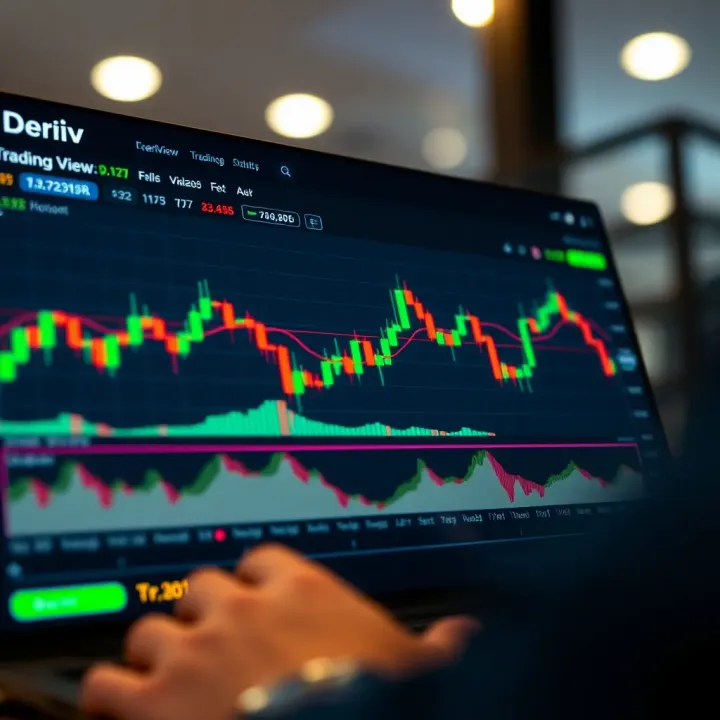
Explore TradingView on Deriv 📈: Learn how to use charting tools, enhance your strategies, and trade smarter in Nigeria and similar markets.
📊 Learn how to integrate TradingView charts into binary options trading in Nigeria. Step-by-step guide with tips on customization, data, and compliance.
Based on 5 reviews